Overview
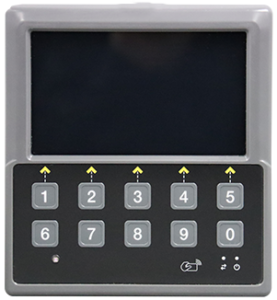
The 15901 HID display supersedes the 15084 HID display and is a step in the evolution of the Smartrack Global product. The 15901 display is 100% compatible with the previous 15084 display.
Note: The automatic light sensor requires software version 5.x.2.27 or higher
Settings
These settings are available for the technician level login. All setting are available under the Display menu
| Setting | Values | Default | Description |
|---|---|---|---|
| Light Sensor | [Enabled/Disabled] | Enabled | [Enabled] Light sensor is used to control the display brightness automatically
[Disabled] Automatic display brightness is disabled |
| High Threshold | [0...99999]lux | 500 | Light level above this value will set the display to the High Brightness Level |
| Low Threshold | [0...99999]lux | 200 | Light level below this value will set the display to the Low Brightness Level |
| Threshold De-bounce | [0...99999]sec | 5 | Time delay in seconds before switching between brightness levels |
| High Brightness | [0...100]% | 80 | Brightness of the display as a percentage of maximum when the light sensor is above the high threshold (bright) |
| Low Brightness | [0...100]% | 20 | Brightness of the display as a percentage of maximum when the light sensor is above the high threshold (bright) |
| Manual Brightness | [0...100]% | 100 | Brightness of the display as a percentage of maximum |
Manual Brightness Adjustment
The automatic brightness levels set by the light sensor can be over-ridden using the Display menu (above) or through the alternate function keys on the operator keypad.
The keys require the user hold them for >1 second for the alternate function to activate. Hold the key until desired brightness is achieved.
Note: The manual brightness adjustment is only valid for the current trip when the light sensor is enabled. The values are restored to the Display settings on the next login.
| Key | Function |
|---|---|
| 6 | Adjust brightness down (dim) |
| 7 | Adjust brightness up (bright) |