- This Guide is to set up the ability to stop a machine on excess idle.Excess idle occurs when the machine has not detected any traction for a set amount of time.
Applying critical output settings and Excess idle settings to machines categories
Note: if Critical Output Configuration cannot be seen please contact your local support branch.
Note: If the ADMINISTRATION menu cannot be seen please contact your local support branch.
- Go to ADMINISTRATION and select Critical Output Configuration
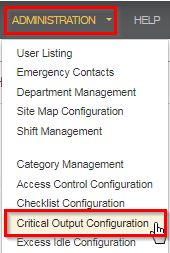
- Go to ADMINISTRATION and select Critical Output Configuration
- The CRITICAL OUTPUT CONFIGURATION page will load

- Select EDIT next to the category with the machines you wish to add critical output to.
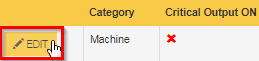
- MODIFY CURRENT CHECKLIST SETTINGS window will now appear
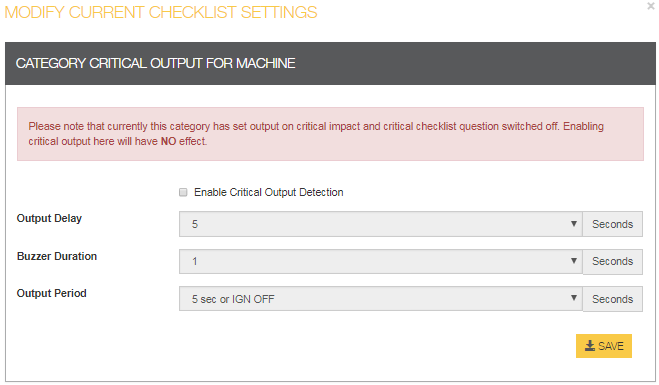
- Check the Enable Critical Output Detection tick box

- Set the output delay, Buzzer Duration and output Period Duration as desired.
- When you need to enter the 'Output Delay' it is suggested at minimum 60 seconds. This is the warning time before the machine shuts down.If this is set too short & an unlikely event happens where the driver is currently moving the machine and a traction signal wire breaks on the machine, the machine will go into Excess Idle mode and shutdown the machine whilst in operation, this is not desirable. Therefore setting an Output Delay of 60 seconds or more gives the driver enough warning and time to park / stop the machine during this unlikely event.The ‘Buzzer Duration’ should be set to a minimum of 3 seconds.
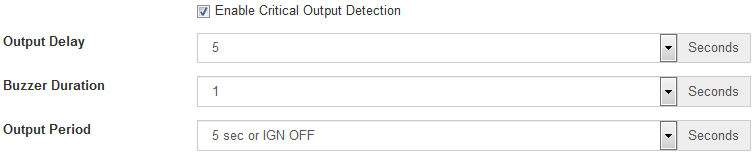
- Click on save

- Critical Output ON will now have a green tick

- Go to ADMINISTRATION and select Excess Idle Configuration
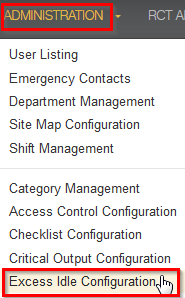
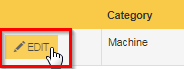
- Select EDIT next to the category of machine that you wish to add auto logoff to
- Modify Current Excess Idle Settings window will now appear
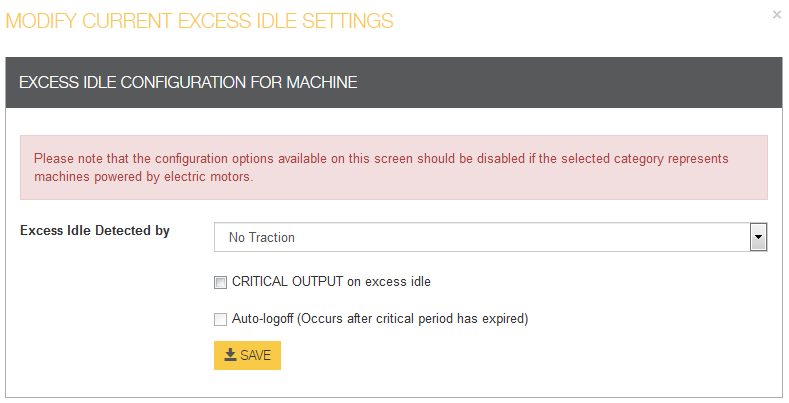
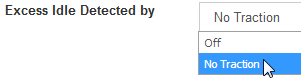
- In the Excess Idle Detected by drop down list select No traction
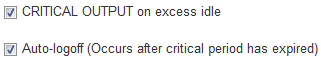
- Check CRITICAL OUTPUT on excess idle and Auto-logoff (Occurs after critical period has expired) tick boxes
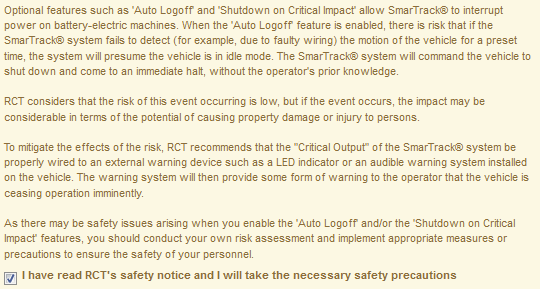
- Read through the RCT's safety notice and check the tick box
- Click on save
- CO ON, CO on Excess Idle and Auto logoff will now have a green tick

Changing the time for Excess Idle
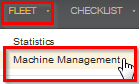
- Go to FLEET and select Machine Management
- The MACHINE MANAGEMENT page will load
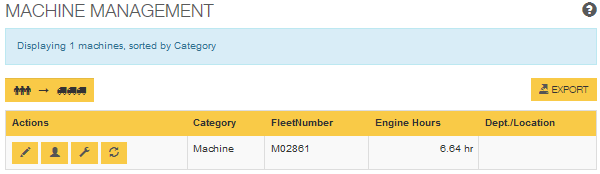
- Select edit
 (pencil symbol) next to the category with the machines you wish to edit the excess idle time for.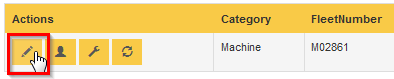
- EDIT window will now appear
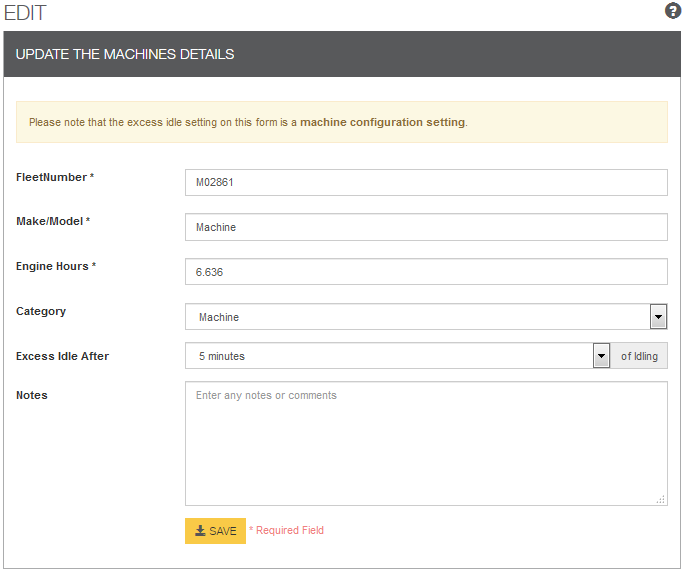
- Select the desired Excess idle time in the Excess Idle After dropdown list

- Click on saveThe Function of auto-logoff on excess idle when on the machine
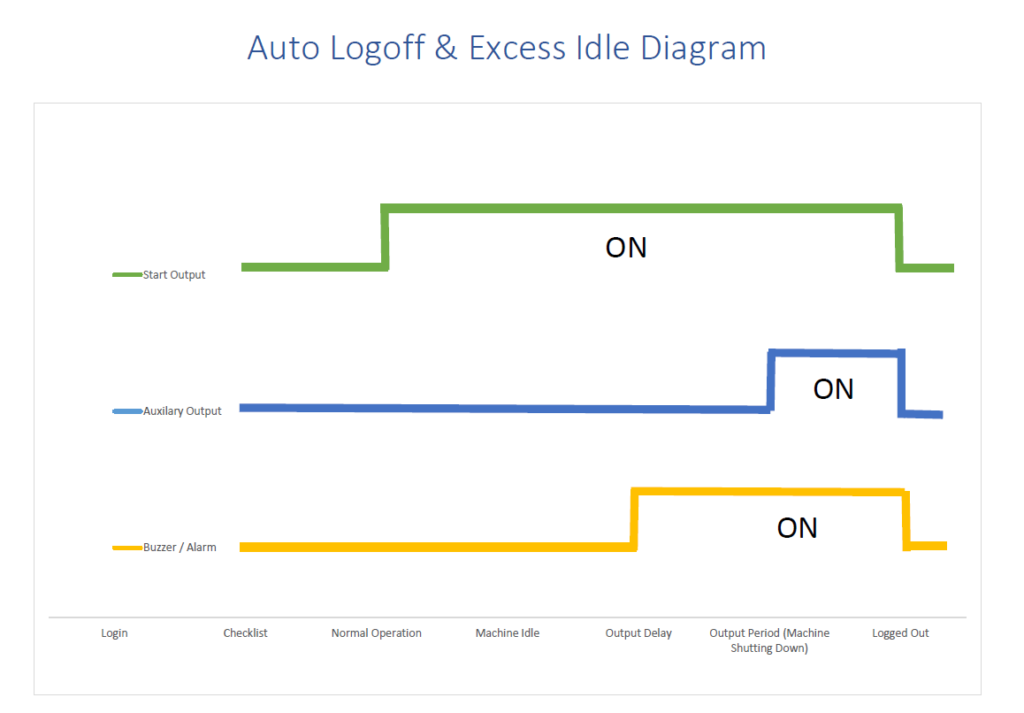
- When the SmarTrack system does not detect traction for the pre-set time, the system will activate the critical output and auto-logoff

- When the machine has been idling for the set time the Excess Idle Critical Output Alarm warning will appear for 5 seconds
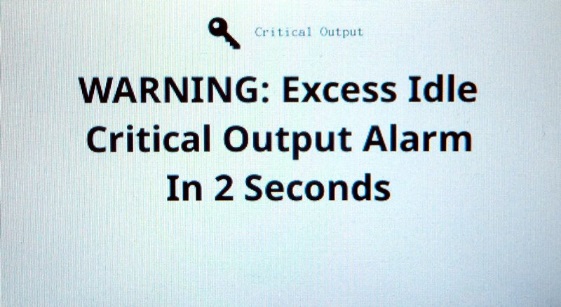
- After the set delay the critical output will come on
- After the critical output the SmarTrack system will automatically logoff and return to the login screen
This is a diagram showing what is happening at each stage the machine is running:
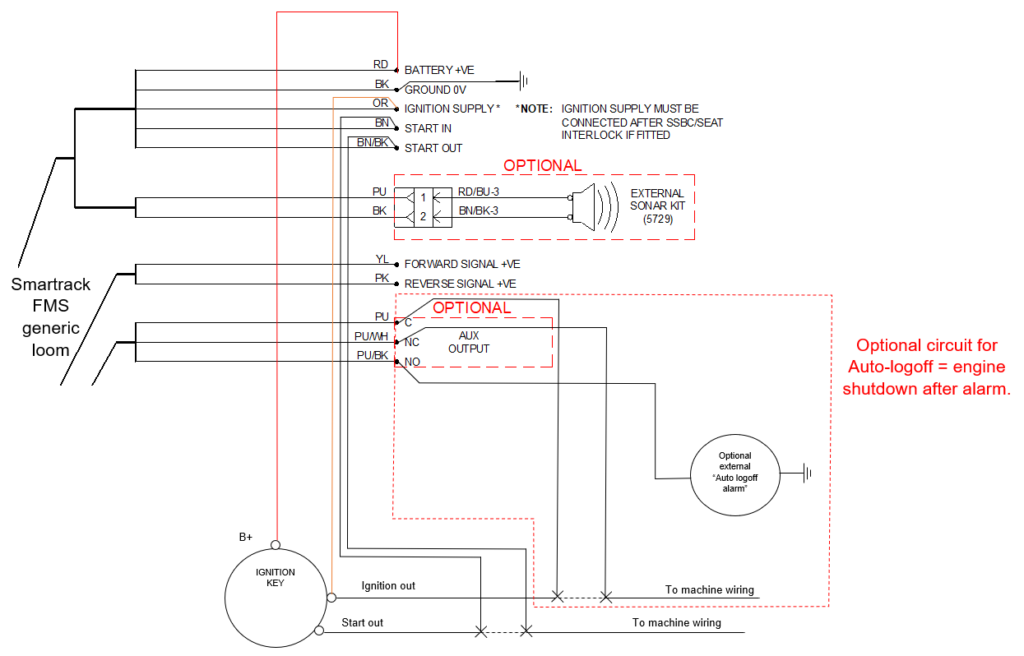
Optional:Your tech may need to wire in the Optional AUX Output as shown.
Basically this allows the AUX Output to cut power to the main Ignition wire from the key barrel.
Also, as shown in the wiring diagram document, a separate alarm/buzzer could be wired-in to the AUX Output so that it alerts people nearby that a machine is going into Excess Idle Shutdown.
**This does not have to be done if the Smartrack system cuts the ignition power. Only if the Smartrack system only inhibits the start wire.**