Now that you have identified your site support, you will need to add them as users and assign them to the required role. You will require the site support’s email address.
To Add A User
- From the menu on the ribbon bar, click ADMINISTRATION and then User Listing.
- Click
 .
. - Enter the email address of the support person or additional user. Complete the remaining required fields. (See below for information on Roles and Types)
- Click
 .
.
Menus for the Role settings:
At least one role is required. Below are the list of roles and what menu will be available when its selected (ticked).
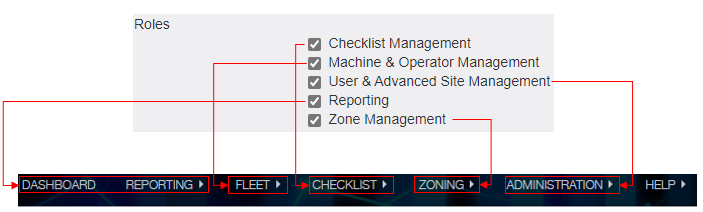
Example below:
A role to only manage checklist was tasked to a user.
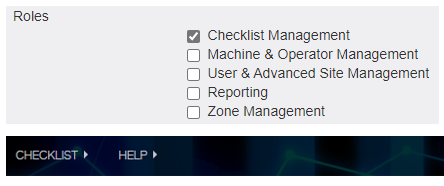
A CHECKLIST will be the only available menu for that user.
NOTE: If a user has the Reporting role removed from them, all their existing alerts and email reports won't be able to get edited or changed. Someone else with the report role would have to edit their alerts or email reports if needed.
User Types - Defines the access granted for user.
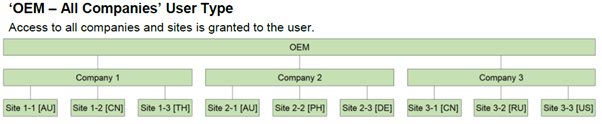
OEM - All Companies -
For the currently selected OEM, an OEM user will be created with access to all existing & future companies and sites.
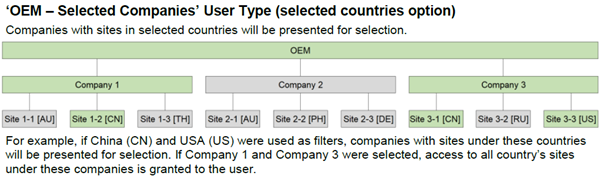
OEM - Selected Companies -
For the currently selected OEM, an OEM user will be created with access to the selected companies.
If “All Countries” is selected then no country restriction will apply. Only the selected companies will be assigned. No future companies will be assigned.
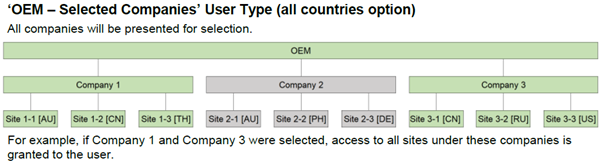
If individual countries are selected, all future companies with sites in those countries will be assigned to the user automatically.
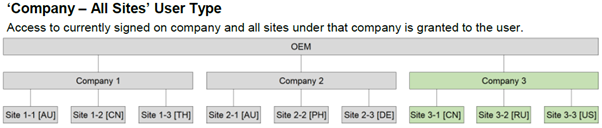
Company - All Sites -
For the currently selected company, a company user will be created with access to all existing & future sites.
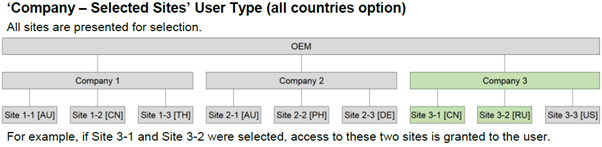
Company - Selected Sites -
For the currently selected company, a company user will be created with access to the selected sites.
If “All Countries” is selected then no country restriction will apply. Only the selected sites will be assigned. No future sites will be assigned automatically.
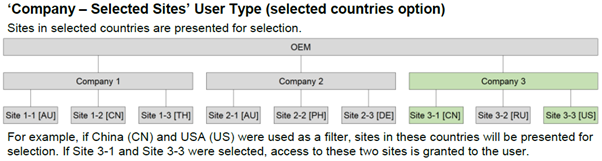
If individual countries are selected, all future sites in those countries will be assigned to the user automatically. The selected sites will also be assigned. The user will only be allowed to access sites in the selected countries.
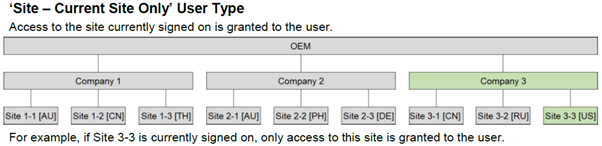
Site - Current Site Only -
For the currently selected site, a site user will be created. This user will only have access to this site.
Multiple OEMs - All Companies -
This will be manage by RCT Admin when request are received from the customer.
Multiple OEMs - Selected Companies -
This will be manage by RCT Admin when request are received from the customer.
Note
A new company or site added to an existing country will become available for the user if ‘Selected Countries’ (option 2) was in use. For a user with ‘All Countries’ (option 1), the new company or site will not be added automatically, it must be selected (ticked) manually.
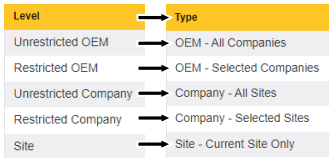
History: On the 13th October 2021 user account naming convention was changed from Level to Type and the heirarchy as follows;
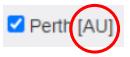
Country code has been appended to the site list to identify which country it belongs to.
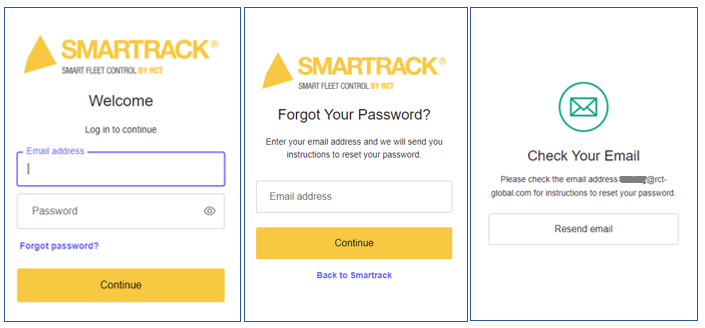
For the new added user:
- The new user will receive a notification on his/her email, follow the links provided, click Forgot password and enter the login email address.
- A password reset link will be sent, set the password and then login to the portal, accept terms and condition to access the portal.
Note
- When a user is removed, any email alerts/reports they have created will be removed and their email will be removed from all alert/report recipient lists.